
A day after, Microsoft have released its much awaited OS Windows 8 Consumer Preview, it has been downloaded a record one million downloads. If you are eager and want to try the Microsoft’s next milestone Operating System in the history of Windows OS, you have install it your system.
But no one wants to install Windows 8 beta as a separate OS, except few Peoples, because it is only in the beta stage as a Consumer Preview. Now you can install and test the Windows 8 Consumer preview in your system through Oracle’s Virtual box.
Here’s a Quick Tutorial about to Install Window 8 in your system by Virtually.
Requirements:
- Windows 8 Consumer Preview ISO (Download Windows 8 CP Here)
- Oracle’s Virtual box (Download here).
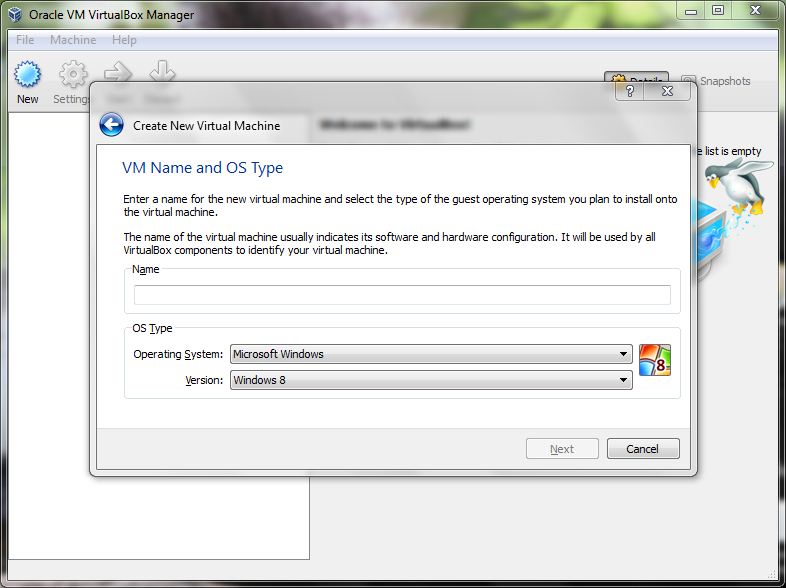
Step 1 : Download and Launch the Virtual box, then Click the ‘New’ Button in new Dialog Window select the ‘Microsoft Windows’ and Version ‘Windows 8’ and Click Next.
Step 2 : Here select the RAM memory you want to allocate for Windows 8. select the Virtual box default setting will show 1024MB and click next.
Step 3: In this step you are going to create new Virtual Hard disk for Windows 8 installation.Select the default amount of space as 20GB or you can select minimum disk space.Click next and proceed.
Step 4: In this step, select the virtual disk file type that you want to use, basically leave the default type.and then click next
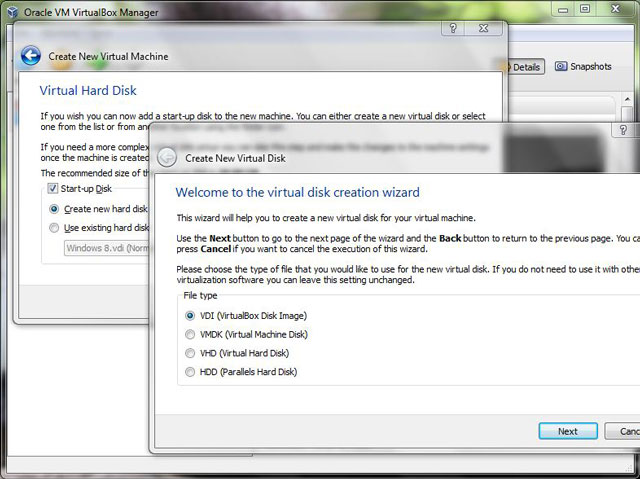
Step 5:In this type Choose the Virtual hard disk storage size. There you have two option, one is fixed(It is a fixed size), another one is Dynamic (virtual machine hard disk size to increase in size as it fills up) and then Select the HDD disk Size and storage location.
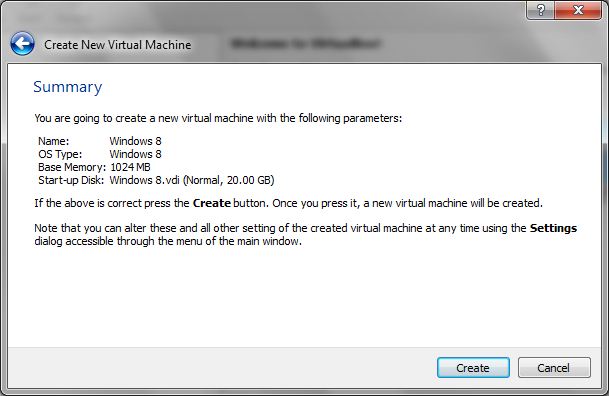
Step 6: Finally check your settings and click the Create Button.
Step 7. Then Start the Virtual which you have created.A new Wizard will appear.
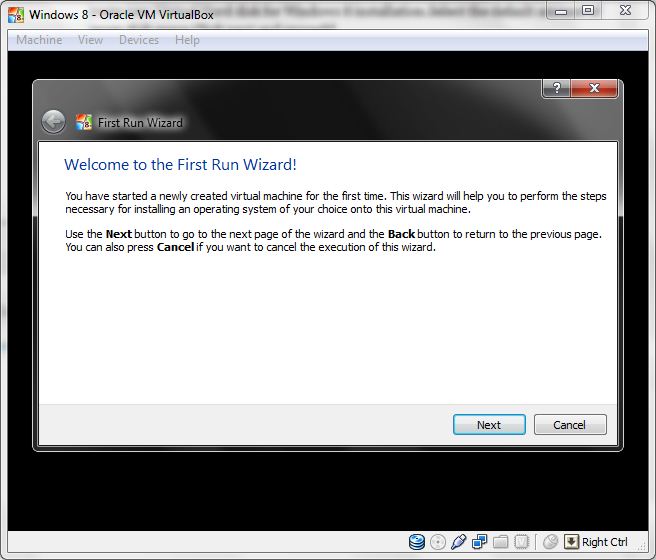
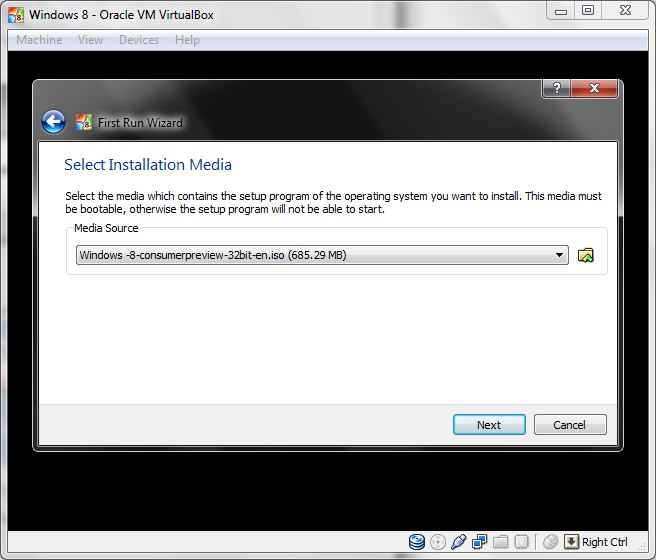
Step 9.Boot Windows 8 and select your language preferences, click on “Install” and then use the following product key from Microsoft: DNJXJ-7XBW8-2378T-X22TX-BKG7J
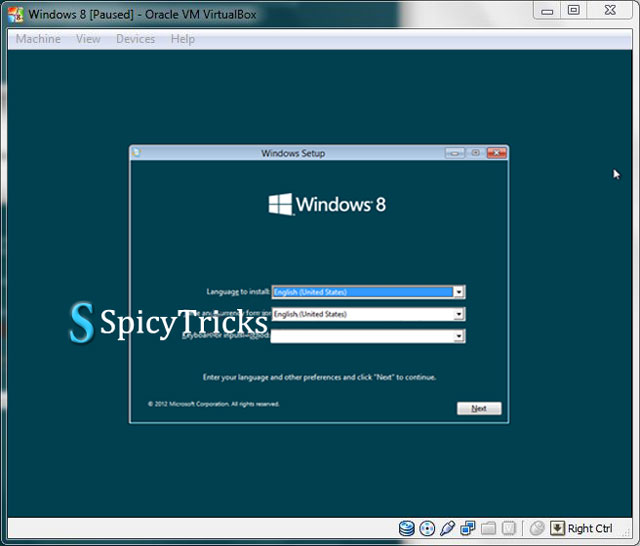
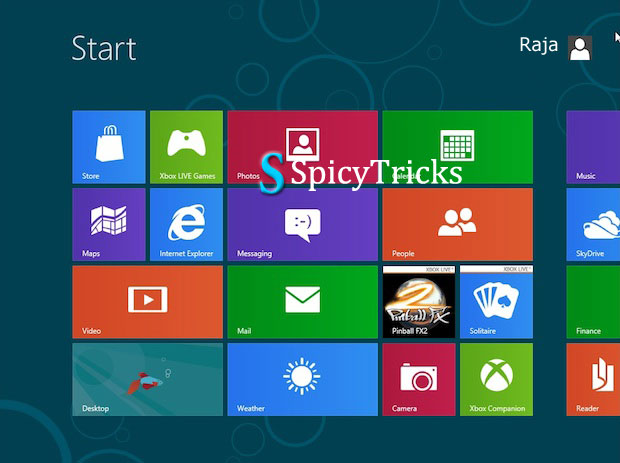
Finally Windows 8 has been installed in your Windows system using Virtual Box. Follow the same Procedure to install the Windows 8 Beta in the Mac OS
For our Complete Windows 8 Coverage Click here


